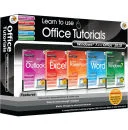
Learn to use Office Tutorials - Windows 7 and Office 2010
This comprehensive training program couldn't be easier to use. On-screen video demonstrations take you step-by-step through all the key areas, each with clear and concise instructions. Simply pick the topic you want to study and sit back and watch as an expert shows you exactly how it's done.
Practise what you've learnt in an interactive tutorial where you try out the task in a simulated environment and then actually 'do it' in your own copy of the program.
Whether you're a complete beginner, or need to refresh your computer skills, this program will have you up and running in no time at all.
Look at what you'll be able to learn in just a few minutes!
Step 1 - Choose your topic:
The program is divided into chapters, which are then broken down into easy-to-master sections which you can study in any order. Simply choose the topic you want to learn more about.
Step 2 - Study the basics:
Read through a short description of the key points to help you follow the on-screen demonstrations.
Step 3 - Watch how the experts do it:
Sit back and watch as the program shows you what to do. The tutor's voice talks you through each step as the screen video plays. You can watch it as many times as you want to make sure you've remembered everything.
Step 4 - Practise it:
Try out what you've learnt in an interactive tutorial that simulates the program's 2010 environment.
Step 5 - Do It:
Now it's time to actually do it in your own copy of the program. Follow the instructions in the pop-up window while you work through the task yourself.
Aswell as tonnes of general tips on how to use Windows 7 efficiently and get the most out of your software, this pack includes:
Learn to Use Microsoft Outlook 2010
- First Steps with Outlook
- First use of the Ribbon
- Using several e-mail accounts
- The Outlook Window
- The Quick Access Toolbar
- The E-mail module
- The Inbox & Outbox
- The Junk E-mail filter
- Creating and sending messages
- Using Hyperlinks
- Adding diagrams, charts and tables
- Attaching a file to an e-mail message
- Electronic signature
- Checking spelling and grammar
- Sending and receiving messages
- Following up messages
- The Calendar Module
- Setting up an appointment
- Printing a calendar
- Sharing a calendar on Office.com
- The Contacts Module
- Viewing and modifying a contact
- Making use of a contact
- Mail Merge
- Other modules
- Task assignation
- The Notes Module
- Customising Outlook Newsgroups with Windows Mail
- Setting up access to Newsgroups
- Viewing, finding and sorting mail
- Setting up e-mail message rules
Internet Explorer 8
- Changing the home page
- Searching on the Web
- Pop-up blocker / Phishing Filter
- Parental Controls
Learn to Use Microsoft Excel 2010
- Working with worksheets
- First use of the Ribbon
- Keyboard shortcuts
- File Management
- Creating a new workbook
- Adding / Deleting worksheets
- Working with the worksheets
- Data entry / custom Lists
- Numeral data series & dates
- Formatting a worksheet
- Formatting cells
- Centre across more columns
- Illustrating and graph processing
- Inserting a picture
- Creating a chart
- Selections and movements
- Setting up a data entry range
- Extended copy and paste
- Displaying and page set-up
- Protecting a file / worksheet
- Customised displays / freezing panes
Learn to Use Microsoft PowerPoint 2010
- First Steps
- What can you do with PowerPoint?
- First use of the Ribbon
- Copying, cutting, pasting
- Understanding Views
- Your First Presentation
- Creating a new presentation
- Creating your own Template
- Creating a photo album
- Good Habits
- Quick Access Toolbar / Ribbon Shortcuts
- Using tags when saving a presentation
- Adding objects to slides
- Working with text / Adding pictures
- Adding WordArt Objects
- Inserting a pre-recorded audio file
- Adding a video from an online site
- Adding tables / Embedding tables
- Adding clip art
- Annotating and formatting slides
- Adding notes / comments
- Changing the slide background
- Aligning, grouping & layering objects
- Page Setup & printing
- Delivering presentations
- Using action buttons
- Packaging a presentation
- Slideshow timings
- Advanced techniques
- Transitions / Animating text & objects
- Adding Internet hyperlinks
- Style Sorter / Hiding Slides
- Customise the Ribbon
- PowerPoint and Workgroups
- Sending presentations by email
- Convert your presentation to PDF
- Presentation encryption
Learn to Use Microsoft Word 2010
- Using Word for the first time
- First use of the Ribbon
- Creating, opening & saving documents
- Print preview & printing
- Copying, cutting and pasting
- Finding and replacing text
- Good Habits
- Ribbon / Keyboard shortcuts
- Automatic save
- Accessing your documents
- The Click and Type feature
- Formatting a document
- Margins, format and orientation
- Tabs, bullets and numbering
- Backgrounds, borders and shading
- Time Saving Tips
- Headers and footers
- Styles, templates and themes
- The Quick Access Toolbar
- Correcting automatically while typing
- Tables
- Creating and formatting a table
- Selections in a table
- Merging & formatting cells
- Pictures
- Inserting a picture in a document
- Adjusting picture characteristics
- Wrapping text around a picture
- Illustrating numeric data with graphs
- Frequently Asked Questions
- Symbols and special characters
- Mail merging
- Automating repetitive work with a macro
- Workgroups and Protection
- Document encryption / Digital signature
- Track changes
Tous les avis clients
Aucun commentaire pour l’instant. <br>Laissez un commentaire pour aider les autres clients à la recherche d'informations sur ce produit.